Data Migration
Mods, settings or vehicle configs missing after a game update? How the launcher migrates your data to a new version and how to restore it manually from backups.Automatic Data Migration
When a new version of the game is detected, the game launcher takes care of migrating some files from the previous version to the new one.
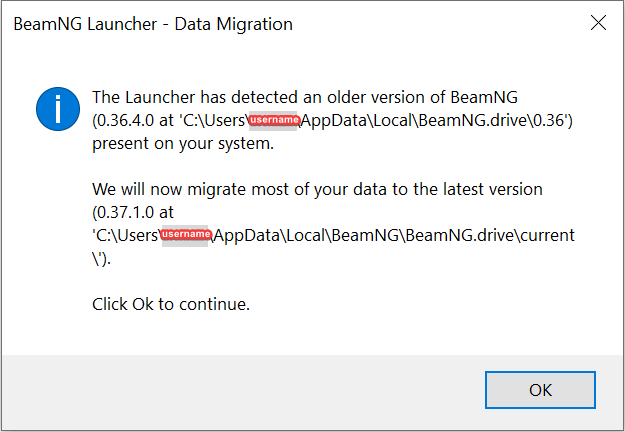 Launcher message when a new version is detected
The data that is transferred automatically includes:
Folder
Description
Folder
/modsDescription
Contains all mods, including repository downloads
Folder
/replaysDescription
Replays recorded and saved in-game
Folder
/screenshotsDescription
Screenshots taken in-game
Folder
/settingsDescription
The user settings, including Controls settings
Folder
/trackEditorDescription
Track Builder related files
Folder
/vehiclesDescription
Only the user-made vehicle configuration (.pc and corresponding .jpg files)
If you don’t have enough free space on your disk, the data migration process may fail.
Manual Data Migration
If for any reason, the data migration process was not successful, you can perform a manual data migration with the following steps:
- Open
Launcherand navigate toManage User Folder - Click on
Manage backups - Find a necessary version and click on it
- Click on
Open backup folder - Transfer the files from old version folder to the new one
DO NOT MOVE all files at the same time
Last modified:
October 6, 2026
Was this article helpful?
More in “User folder and data”
All articles →
User FolderWhat is the BeamNG.drive user folder, where to find it, what it contains (mods, settings, cache) and how it differs from the game folder.
Change user folder locationMove the BeamNG.drive user folder to another drive or folder: use Move to custom location in the launcher, or set userFolder in BeamNG.drive.ini.
Steam Deck / Linux: lost dataLost your BeamNG.drive settings or mods on Steam Deck or Linux after the switch from Proton to native Linux? Copy your user folder or keep using Proton.