Vehicle Triggers
How to use vehicle triggers in BeamNG.drive: select on-screen trigger boxes to operate parts of the vehicle, and the default PC bindings.Vehicle Triggers were introduced in version 0.22 making it possible to interact with certain vehicle actions by directly interacting with the on-screen triggers.
This feature is only available on vehicles that supports it.
How to
- Point the cursor at a vehicle to reveal its trigger boxes
- Select a trigger box to operate it.
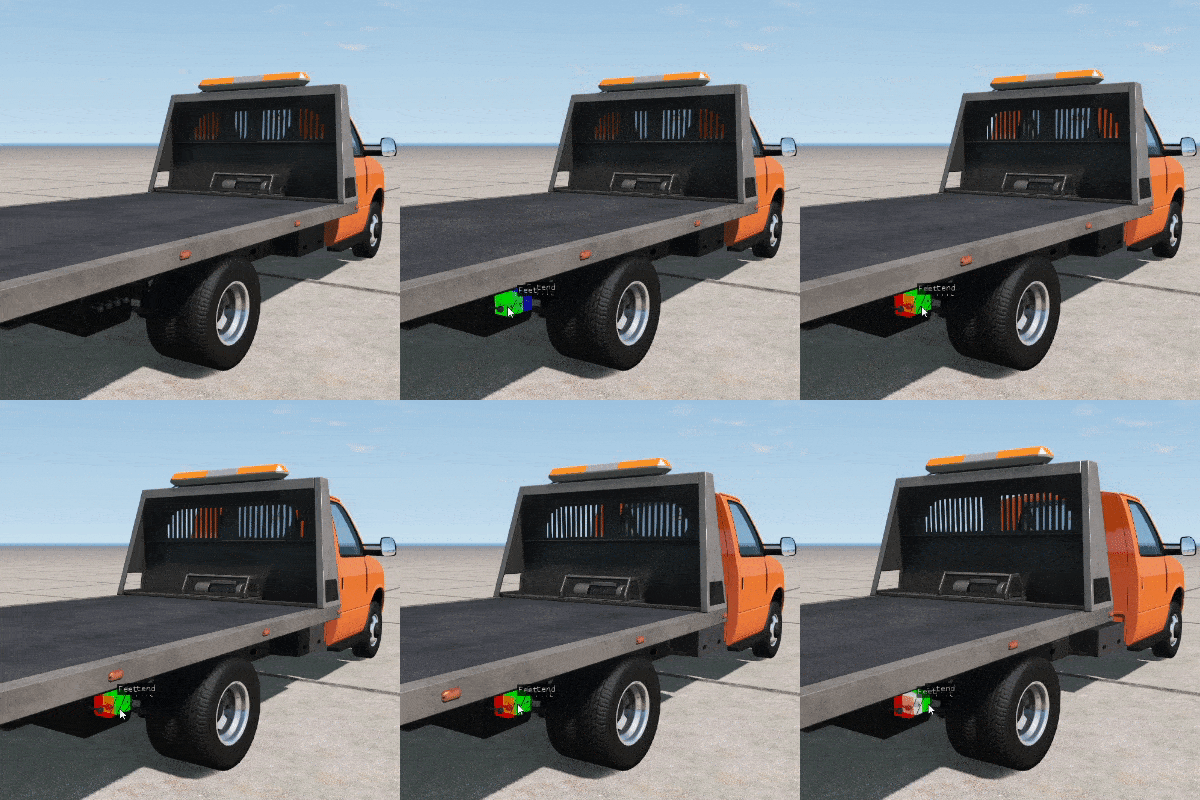 Vehicle Triggers on the H-45 Flatbed
The default mouse bindings on PC are:
Key
Binding
Comments
Key
Left Mouse Button
Binding
Action 1
Comments
The main mode of the trigger
Key
Shift + Left Mouse Button
Binding
Action 2
Comments
Key
Middle Mouse Button
Binding
Action 3
Comments
Usually does the opposite of Action 1
Feature video
Last modified:
April 16, 2021
Was this article helpful?
More in “Game features”
All articles →
AI and TrafficHow to enable AI and traffic in BeamNG.drive: radial menu, AI Control and Traffic apps, AI modes and AI debug modes.
Trailers and CouplersHow to attach and detach trailers and couplers in BeamNG.drive.
PhotomodeHow to use Photo Mode in BeamNG.drive: camera settings, known issues and tips for taking better screenshots.
ReplayHow to record and play back replays in BeamNG.drive: recording, playback, the Replay UI app and camera path integration.
HotlappingHow to use Hotlapping in BeamNG.drive: set up checkpoints, time your laps, advanced options and racing against AI.
Teleporting VehiclesHow to teleport vehicles in BeamNG.drive.