Nodegrabber
How to use the Node Grabber in BeamNG.drive: grab and pull vehicle nodes, adjust grab strength, pin nodes and attach them to each other.This feature allows to manipulate vehicle nodes using the cursor. This makes it possible to:
- Grab & Drag node
- Pin node mid-air
- Attach node to another node
How to
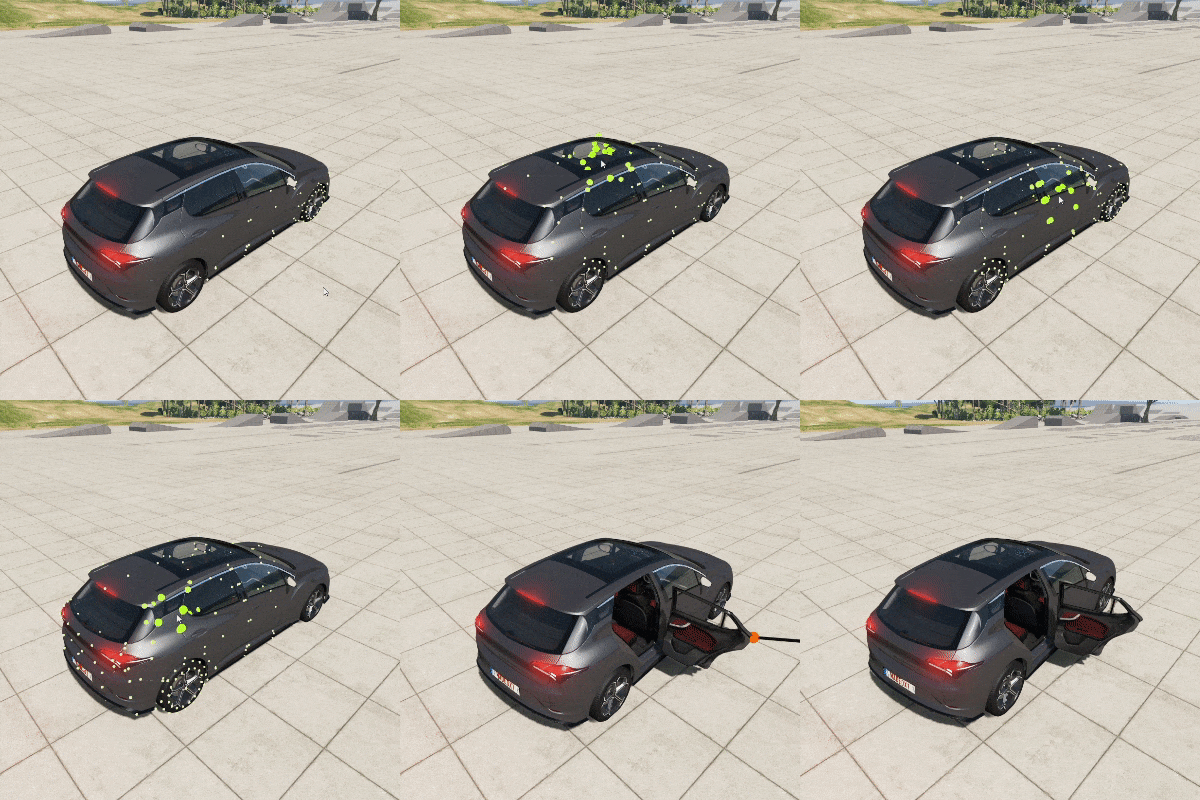
Grab a node
- Hold CTRL (the default key) to enable the feature.
- Move your cursor over a vehicle. All the vehicle’s nodes will be highlighted via a sphere.
- Click and hold the Left Mouse Button (the default button) to grab a node.
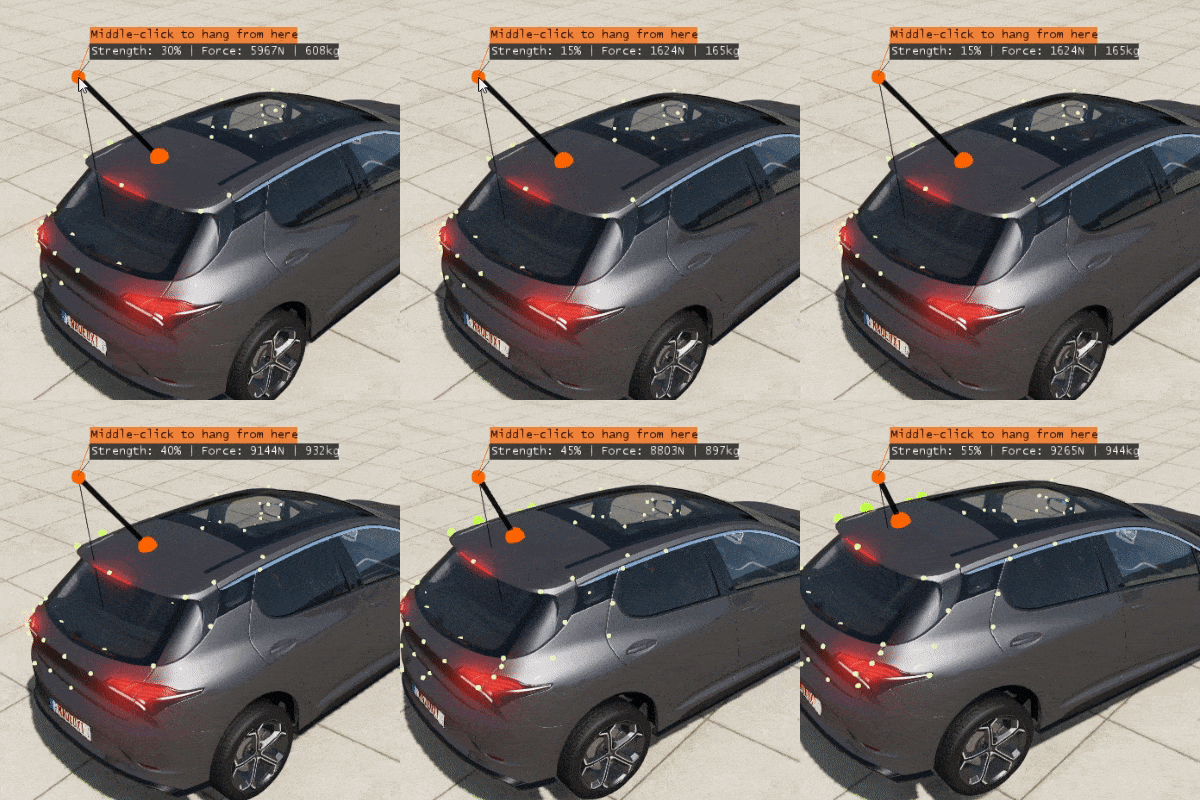
Adjust grab strength
While grabbing a node, use Mouse Wheel Up/Down to adjust the strength of the grab. The strength is displayed on the on-screen label.
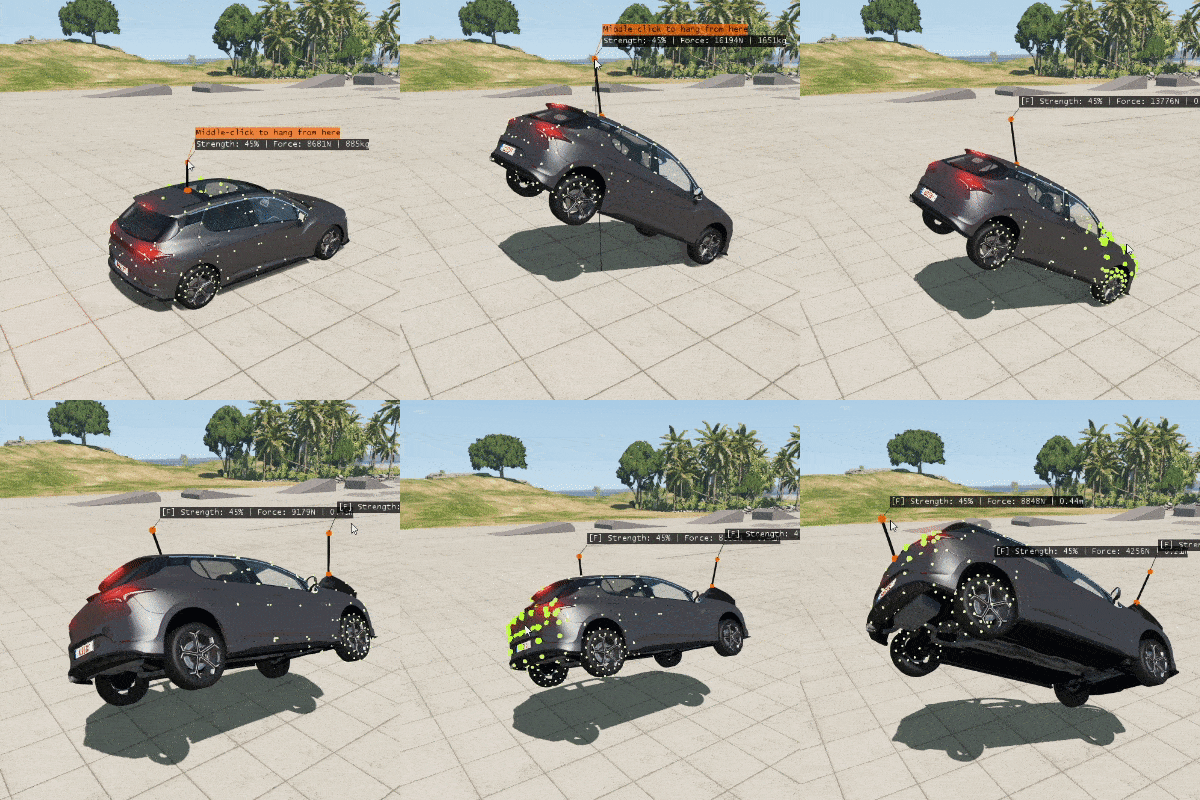
Pin a node
While grabbing a node, press the Middle Mouse Button to pin a node.
Attach a node to another node
While grabbing a node, hover over another node and press the Middle Mouse Button when the label indicates so via a change of color (see visual example below). To detach two nodes that were previously attached, simply middle-click on one of the attached nodes.
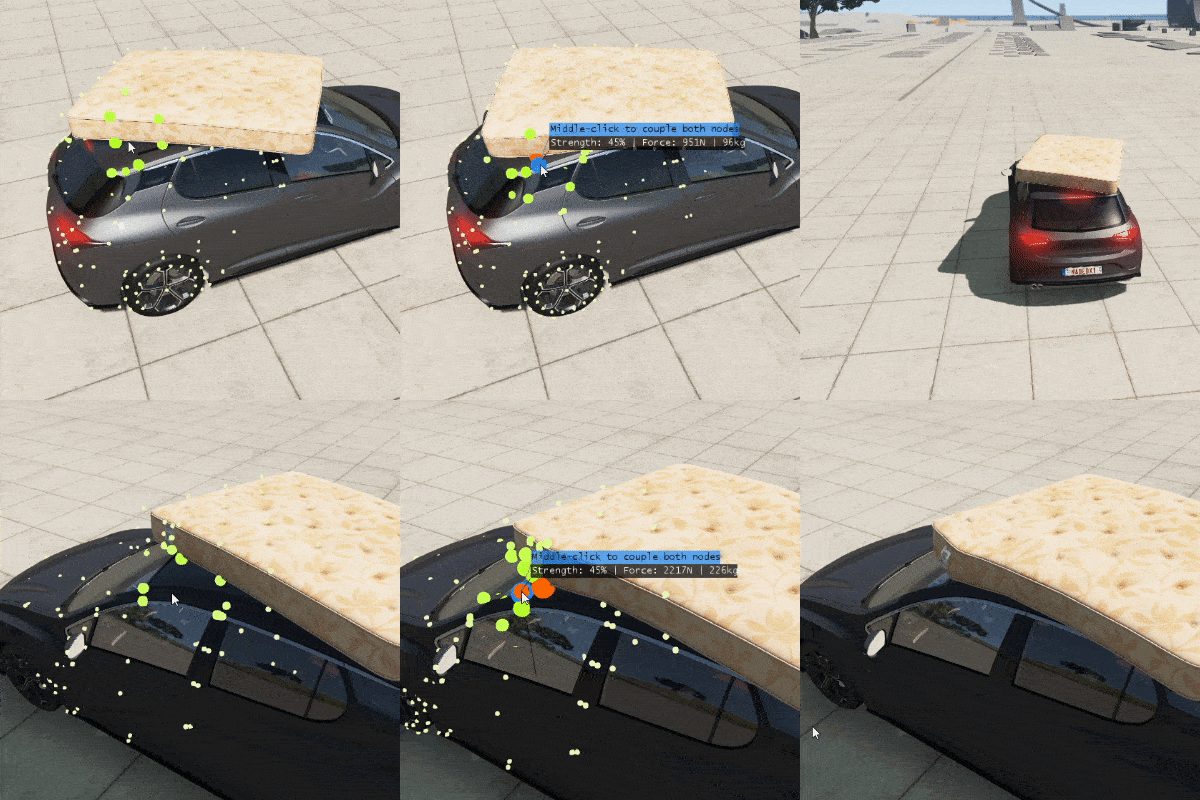
Check the on-screen label to know which action your middle-click will perform.
Feature videos
Last modified:
March 9, 2021
Was this article helpful?
More in “PC features”
All articles →