Verify Integrity
How to verify BeamNG.drive game files in the launcher, Steam or Epic Games Store, and reinstall the Humble Bundle version, to fix corrupted files.If you experience any issues with the game, you can always verify your game file integrity via the Launcher.
This tool will work only if you can see the launcher
What is Verify Integrity?
This tool checks and compares the hashes of game files. If the integrity of game files is compromised, the tool will show you the list of files in the log.
When do I need to use Verify Integrity?
- The game doesn’t launch properly
- Vehicles or levels don’t look as they should
- Corrupted mods
How to use the tool?
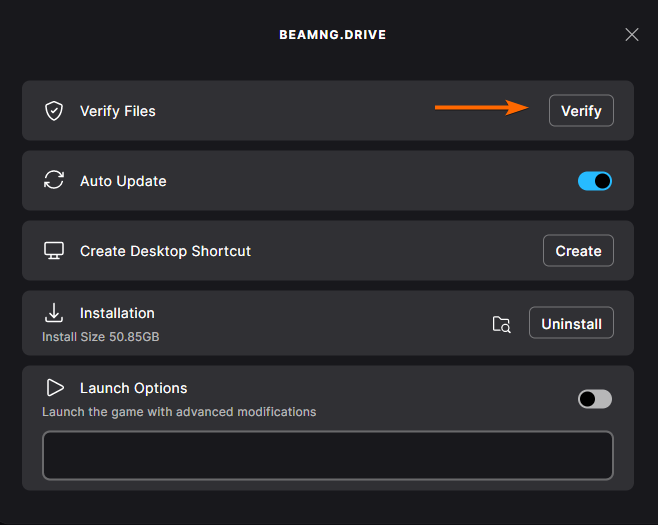
- Open Launcher
- Navigate to Support Tools
- Click on Verify Integrity
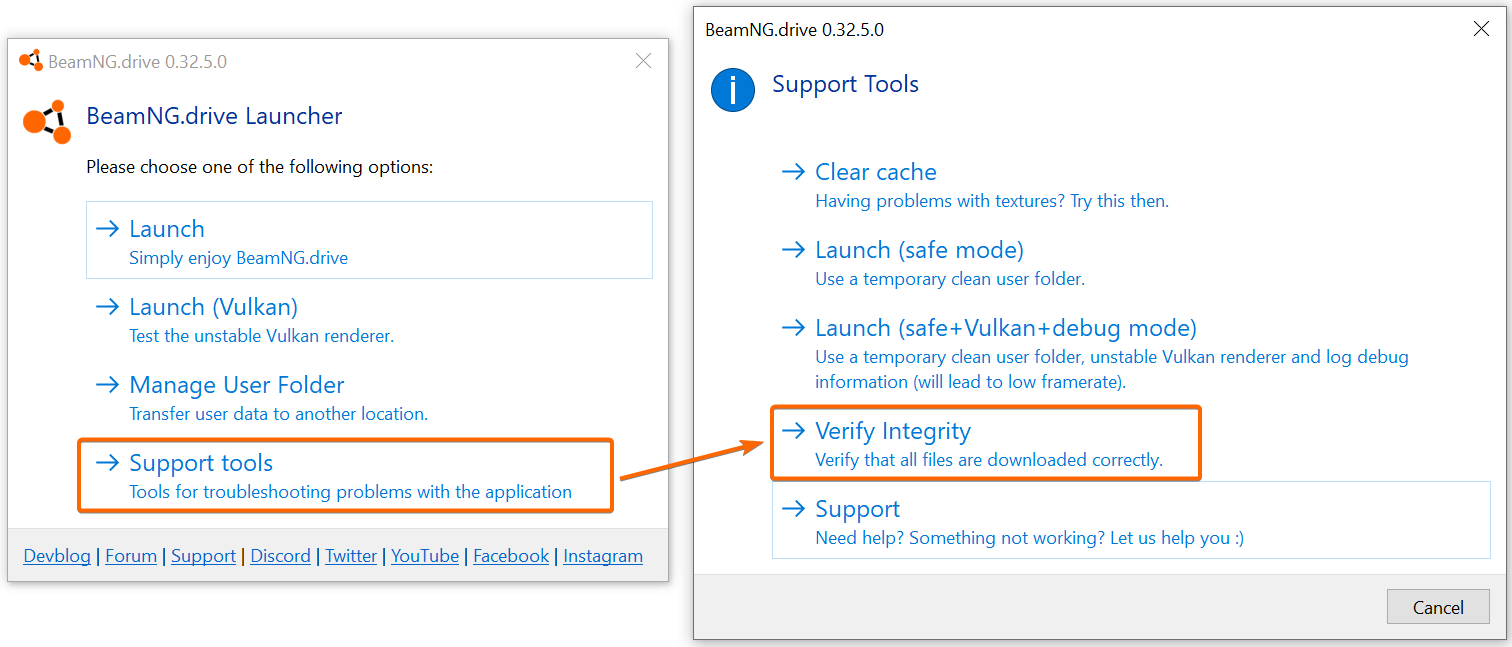
This process may take some time. Please be patient and don’t close the window
If the tool shows an issue:
You can check the missing files in the log.
Steam
If you suspect that there is an issue with the integrity of the files, please try the following steps:
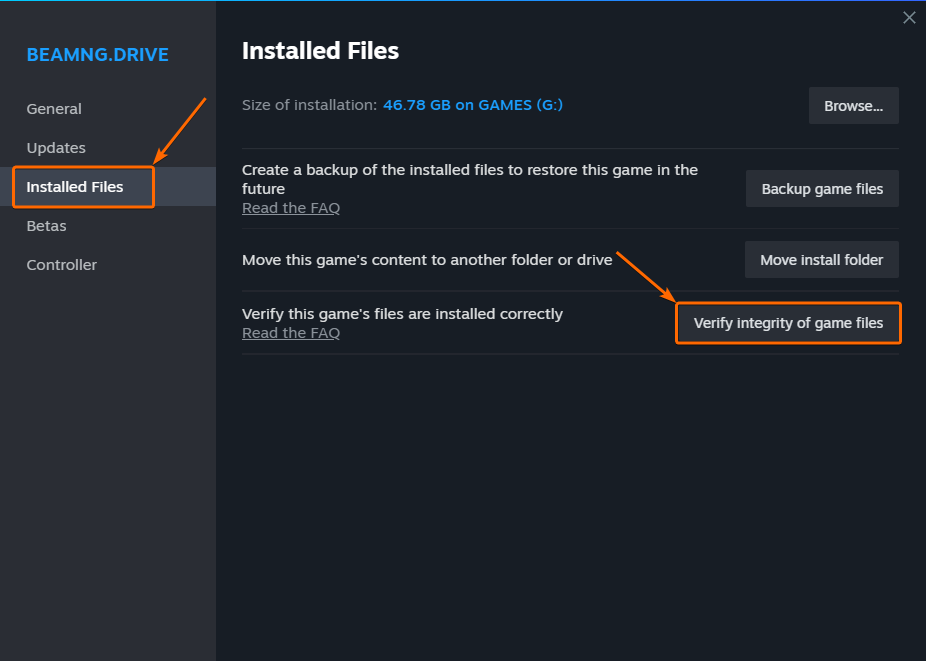
- Open Steam
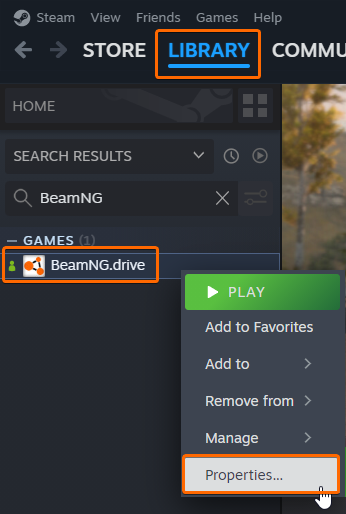
- Navigate to your Library
- Right click on BeamNG.drive and select
Properties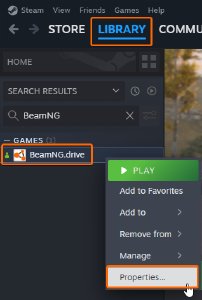
- Go to the
Installed filestab - Click on
Verify Integrity of game files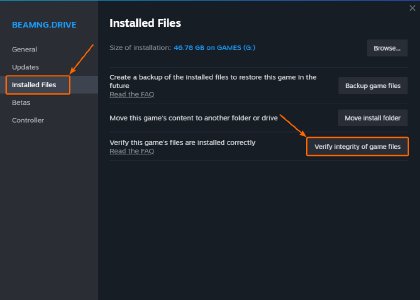
- If this did not help, please perform a Clean Install.
Humble Bundle
- Find and delete the game folder
- Reinstall the game using the downloaded installer or zip-archive If this didn’t help, please perform a Clean Install.
Epic Games Store
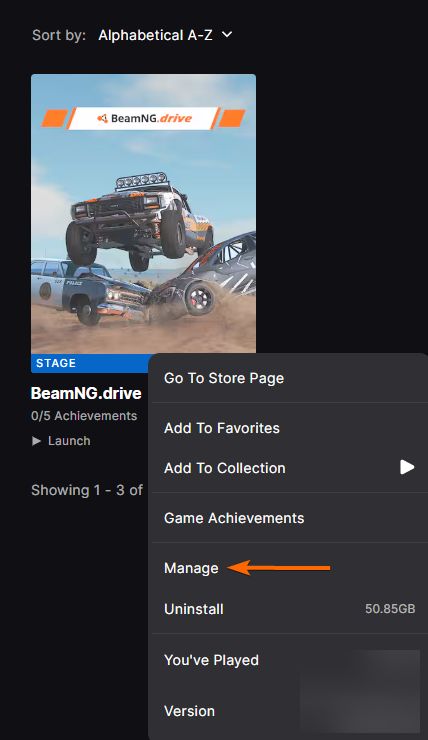
- Open Epic Games Store
- Navigate to your Library
- Right click on BeamNG.drive and select
Manage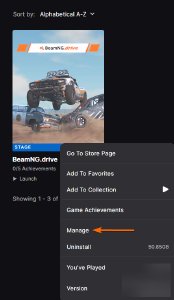
- Go to the
Installed filestab - Click on
Verify Integrity of game files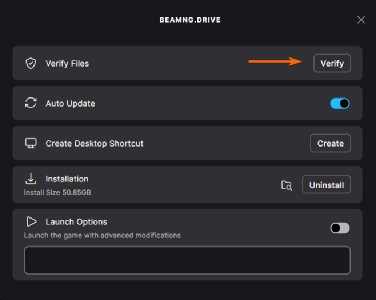
- If this did not help, please perform a Clean Install.
If the tool doesn’t show any issues
If it doesn’t show any issues, but you still experience problems, please try to resolve the issue using our Troubleshooter.
Additionally, you can check these articles:
Last modified:
August 28, 2024
Was this article helpful?
More in “Support tools”
All articles →
Safe ModeHow to start BeamNG.drive in Safe Mode from the launcher to check whether mods or settings cause crashes, and what to do next.
Clear CacheHow to clear the BeamNG.drive cache in the launcher (Support Tools > Clear Cache) to fix broken textures, maps that won't load and mod issues.
Gathering Logs (Support ID)What a Support ID is, how to collect your BeamNG.drive logs (launcher logs, DxDiag, game logs, mods list) and why support asks for it.
Clean InstallHow to perform a clean install of BeamNG.drive on Steam, Humble Bundle or Epic Games Store, and how to back up your files first.
How to report issuesHow to report a bug, crash or other problem in BeamNG.drive: what to check first (Safe Mode, Known Issues), crash reports, forum reports and contacting support.
TroubleshooterExplore our step-by-step troubleshooting guide.